I have been playing with Visio since 93 when customer support was on CompuServe. With Visio, I could create Business diagrams easily. Before that I was creating the diagrams by using code, including COBOL. Around version 3, Visio was the first non MS company to fully implement VBA, including the macro recorder. So since then, all my playing with Visio was done using my Very Best Assistant, VBA.
Visio allows developers / power users two ways to play with the internal structure of Visio. by code using CellsSRC() or by using one of the many ShapeSheets available in Visio. The ShapeSheets look like mini Excel spreadsheets. When I first started writing about Visio, I talked a lot about the ShapeSheets. One problem I ran into was that illustrating articles with screen shots had problems. The ShapeSheets had a lot of items in many sections and the screen shots became very busy and there was no easy way to annotate the screen shot. What would be nice would be to be able to treat the Visio stencils as Visio shapes, so I started to explore and created an Excel file of what I found out about the stencils using CellsSRC, a Visio function to work with Visio internals. CellsSRC is a powerful tool, it allows you to work with Visio shapes based on Section, Row and Cell. (For it’s power, I thought it meant Cells Source.) I also used Graham Wideman’s great books on the Visio Sections as a reference. There have been a couple changes since he wrote those books and I noted those changes in my Visio Visual Sections book.

Structure of the Data
So how was the information in the Excel spreadsheet structured? I went back to a structure used with punch cards from my old mainframe days. There were header cards that described the core information of the sections, followed by detail cards that described the individual cells. Excel was not limited to the old 96 or 80 column limits of punch cards. With Excel I could give each piece of header and detail information their own column and there was many more columns that could be used for formulas that would join the information. Visio does have a number of enumerations, but there was no single enumeration for the section types used by CellsSRC. Section 1 actually contained several sections and their sections were based on Section and Row. I treated the rows in the Geometry Sections as separate shapes. So I had to build my own section ids based on the enumerations and other information to be able to translate between the section numbers used in Graham’s books and what was in the visual sections.
With the information in the Excel file, I was able to make Visio Section shapes that I could change the text and colours so that the details I wanted to convey to the reader, would stand out, would POP! This first stencil used canned information and I am currently working on the last phase, point code at a real Visio page and replicate the shapes that are in that drawing.
The Grid
the first thing to do was to create a standard grid shape as the basis for a stencil shape.
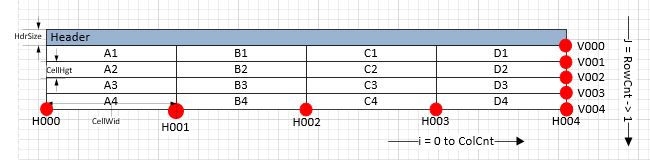
To be able to reference the individual cells, I used Excel like notation. I also added control handles (the red dots) to be able to resize the cells. With this basic shape I was able to embellish it to look like any of the Sections.
Section Container
When Visio added List Containers, I had a way of presenting the new stencil shapes I created. There are no List Containers in Visio, but they are easy to create. It is just a matter of adding some User cells.

I also added some right click behaviour.

You can set the containers to adjust to the content and the margins.

Dictionary
Though it is easy to update, using Excel as a data source is cumbersome and not really portable, so the next stage was too implement VBA Dictionaries. I needed three, one for the messages, one for the sections and one for the cells.
Dim dict as Object, key, val
Set dict = CreateObject("Scripting.Dictionary")
dict.Add "a", "Athens"     'Add some keys and items
dict.Add "b", "Belgrade"
dict.Add "c", "Cairo"

For Each item In dict.Items
   Debug.Print item
Next item
For our purposes, the item could be a class rather than a string, but I treated them as delimited strings which was decoded when accessed from the dictionary.
Since the source of the information is already in an Excel spreadsheet, it was easy to consolidate the information into a new column and make the information to look like the commands needed to build the dictionary.
="sctInfoDict.Add key:=""Z"&C6&TEXT(L6,"00")&""", Item:="""&C6&"|"&K6&"|0|"&G6&"|"&M6&"|"&N6&"|"&O6&"|"&P6&"|"&Q6&"|"&R6&"|"&S6&""""
which creates...
sctInfoDict.Add key:="ZShpTrns09", Item:="ShpTrns|C02|0|1|L|TXT3|FG4|2|N|PinY|"
So, when it is time to update the dictionary, it is just a matter of changing the appropriate column entry and copying the column to the VBA module that contains the dictionary creation code.
Visual vs Reality
The Visual Sections do not map up with reality. Rather than map up with just a section Number, a Visual Section may map up with a row or may map up with part of a row. For example, the Virtual Glue section is part of the Miscellaneous Section.
<TBD> Diagram Bindings
<TBD> Master Selectors
<1-1> Shape Transform Section
<1-2> Line Format Section
<1-3> Fill Format Section
<1-4> 1-D Endpoints Section
<1-5> Events Section
<1-6> LayerMem Section
<1-7> Guide Section
<1-8> Style Properties Section
<1-9> Foreign Image Info Section
<1-10> Page Properties Section
<1-11> Text Block Format Section
<1-12> Text Transform Section
<1-14> Alignment Section
<1-15> Protection Section
<1-16> CopyRight Section
<1-17> Miscellaneous Section
<1-17-9/12> Glue Info Section
<1-18> Ruler & Grid Section
<1-19> Hyperlink Section
<1-20> Document Properties Section
<1-21>Image Properties Section
<1-22> Group Section
<1-23> Shape Layout Section
<1-24> Page Layout Section
<1-25> Print Properties Section
<1-26> Gradient Properties Section
<1-27> Quick Style Section
<1-28> Additional Effect Properties Section
<1-29> Bevel Properties Section
<1-30> 3D Rotation Properties Section
<1-31> Theme Properties Section
<1-32>Change Shape Behaviour Section
<1-167> Layer Membership Section
<3-0> Character Section
<4-0> Paragraph Section
<5-0> Tabs Section
<6-0> Scratch Section
<7-0> Connection Points Section
<8-0> Text Fields Section
<9-0> Controls Section
<10-0> Geometry Section
<240-0> Actions Section
<241-0> Layers Section
<242-0> User-defined Cells
<243-0> Shape Data Section
<244-0> Hyperlinks Section
<245-0> Reviewer Section
<246-0> Annotation Section
<247-0> Action Tag Section
<248-0> LineGradient Section
<248-0> LineGradientStops Section
<249-0> FillGradient Section
<249-0> FillGradientStops SectionI hope this helps…
John… Visio MVP in x-aisle
JohnVisioMVP.ca
 john Visio MVP