
(AKA Shape Data Dump)
Decades ago, I created a simple VBA script to dump a shapes Custom Properties (Aka Shape data). If I wanted to include the Custom Properties Section in documentation I had to run Show Shapesheet and take a screen capture. It was just an image. Since Visio shapes are more flexible in documentation, I created a set of Visio Section Shapes using static data. The next step was adding the ability to point the code at real Visio shapes hand have it create actual Visio shapes from real data. To a novice, the ShapeSheet is quite busy, so having the ability to tweak the contents of various ShapeSheet cells to bring the user’s attention to them made the Shapesheet far more understandable. Though I have the shapes, the filling of the shapes is a work in progress.
So, I decided to create the code needed to extract the Shape Data section and put it it Excel in a Format similar Show Shapesheet.
To be able to map the contents of the real Shapesheet with the visual one in Show Shapesheet I used a VBA dictionary, but in this case, for the Shape Data section, I just used an array, Ary().

The code is pretty simple, it just uses the shapes on the Active page and loops through them.
Before each shape, it prints the titles for the Shape Data. Except for “the “Value”, the names are extracted from the real Shapesheet. The “Mid” code is used to remove the Shape Data name from the title.
The code then loops through the Shape Data in that section printing a line for the values AND a line for the formulas.
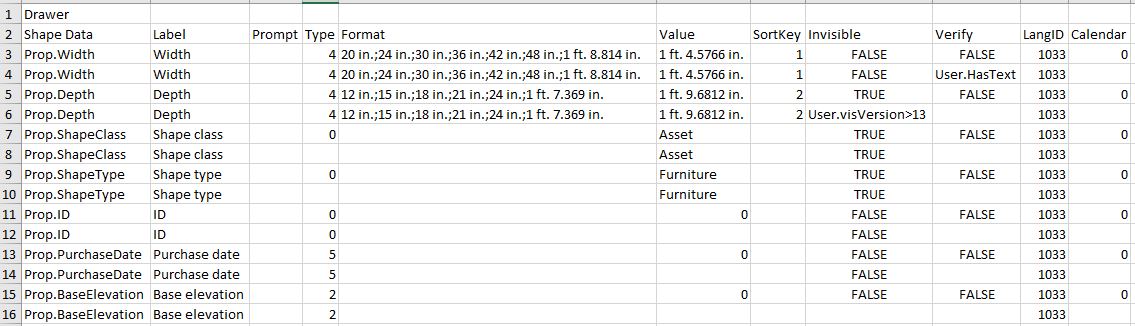
I found the No Formula text distracting, so I did not include it.
The other thing to note is that in the real Shapesheet, “Ask” is called “Verify”
Public Sub CustomProp()
Dim Ary As Variant, i2 As Integer, i As Integer, j As Integer, k As Variant
Dim nrows As Integer, ShpNo As Integer, shpObj As Visio.Shape
Open CurDir() & "\" & "DumpCP.xls" For Output Shared As #1
Ary = Array(2, 1, 5, 3, 0, 4, 6, 7, 14, 15, 8)
For ShpNo = 1 To ActivePage.Shapes.Count
    Set shpObj = ActivePage.Shapes(ShpNo)
    Print #1, shpObj.Name:  Print #1, "Shape Data";
    For k = 0 To UBound(Ary)
        i2 = Len(shpObj.CellsSRC(visSectionProp, 0, 0).Name) + 2
        If Ary(k) = 0 Then
            Print #1, Chr(9); "Value";
        Else
            Print #1, Chr(9); Mid(shpObj.CellsSRC(visSectionProp, 0, Ary(k)).Name, i2);
        End If
    Next k
    Print #1, ""
    nrows = shpObj.RowCount(visSectionProp)
    For i = 0 To nrows - 1
    Print #1, shpObj.CellsSRC(visSectionProp, i, 0).Name;
        For k = 0 To UBound(Ary)
            Print #1, Chr(9); shpObj.CellsSRC(visSectionProp, i, Ary(k)).ResultStr(visNone);
        Next k
        Print #1, ""
    Print #1, shpObj.CellsSRC(visSectionProp, i, 0).Name;
        For k = 0 To UBound(Ary)
            Print #1, Chr(9); shpObj.CellsSRC(visSectionProp, i, Ary(k)).Formula;
        Next k
        Print #1, ""
    Next i
Next ShpNo
Close #1
End Sub
Update
From past exploring (and Graham’s books), I knew that I could use CellSRC() to get the real Shapesheet to tell me the names of the columns in the visual Shapesheet. They would not necessarily be in the same order and that there was a possibility of gaps, so my first attempt used For col =0 to 20. Errors told me to reduce that to 0 -> 15. Columns 9 to 13 existed, but they did not have meaningful names. Column 8 on the other hand was a different story, it was called “DataLinked”. I was unable to verify that this was a legitimate column, so the updated code in this blog has a final column for it and we will see if the Value and Formula cells reveal anything when used on a shape that is data connected. 😉
I hope you find this useful.
John… Visio MVP in x-aisle
JohnVisioMVP.ca
 john Visio MVP